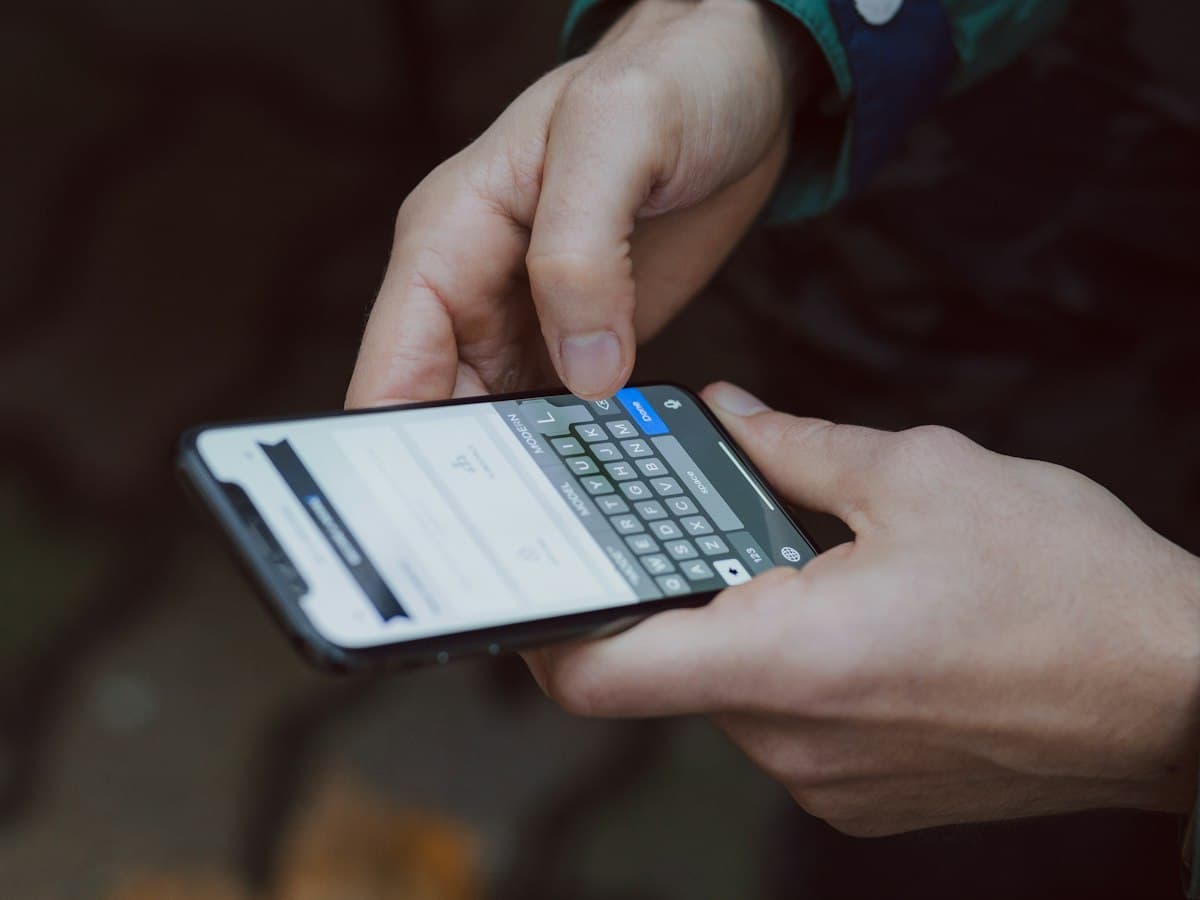
Install guide
Install your eSIM before you travel, while connected to Wi-Fi. A QR code can usually be installed only once, so do not delete the eSIM from your phone until your trip is over.
Before you start
- A stable Wi-Fi connection.
- An eSIM-capable, carrier-unlocked phone (see Compatible devices).
- The QR code from your email or order page shown on another screen or printed — or the SM-DP+ address and activation code for manual installation.
iPhone
- Open Settings → Mobile/Cellular → Add eSIM.
- Choose "Use QR Code" and scan the code. For manual setup choose "Enter Details Manually" and enter the SM-DP+ address and activation code.
- Label the eSIM (e.g. "Travel") and keep your primary line for calls and SMS.
- On arrival: Settings → Mobile/Cellular → set the travel eSIM for "Mobile Data", then turn on "Data Roaming" for that eSIM.
Android — Samsung
- Settings → Connections → SIM manager → Add eSIM.
- Choose "Scan QR code from service provider" and scan, or enter the activation code manually.
- On arrival: in SIM manager select the eSIM for mobile data, then Settings → Connections → Mobile networks → turn on "Data roaming".
Android — Google Pixel and others
- Settings → Network & internet → SIMs → "Download a SIM" or "Add eSIM".
- Scan the QR code, or tap "Need help? → Enter it manually".
- On arrival: select the eSIM for mobile data and turn on "Roaming" for it.
If the eSIM does not connect
- Make sure "Data Roaming" is on for the travel eSIM.
- Toggle Airplane mode on and off after 10 seconds, or restart the phone.
- Select a network manually in carrier settings if it does not connect automatically.
- If you are asked for an APN, use the value shown on your order page, if any.
- Still stuck? Email us with your order number via the Contact page.